Get More Google Reviews: Small Business Guide
Get More Google Reviews: Small Business Guide
To get more Google reviews for your small business, six compliant actions drive the most consistent results: claim and verify your Google Business Profile, generate your review link and QR code, ask every customer shortly after completing a service, automate follow-up requests, respond to every review, and track your review velocity weekly. Start today by verifying your profile and copying your review link. In the first week, send that link to your last 10 customers via SMS, one at a time, and set up a single automated follow-up for future jobs.
- Claim and verify your Google Business Profile (required before any review link exists)
- Generate your review link and QR code directly from the Business Profile dashboard
- Ask within 24 hours of completing a job, while the experience is fresh
- Automate follow-up requests triggered by job completion or invoice, not by calendar
- Respond to every review, positive or negative, within 48 hours
- Track review velocity (new reviews per week) and average rating monthly
Steady, genuine reviews build local search visibility over time. According to Shopify’s guidance, review volume and recency are growing local-ranking signals, and a consistent stream of recent reviews typically produces more sustained visibility than a single large burst.
Key Takeaways
A consistent, compliant review system built on timely asks, direct links, automation, and fast responses is the most reliable way to grow Google reviews and improve local search visibility for small home service businesses.
| Point | Details |
|---|---|
| Ask within 24 hours | Request a review the same day as job completion, while the experience is fresh and conversion rates are highest. |
| Use a direct link every time | Copy your review link from Google Business Profile and send it via SMS or email to eliminate friction. |
| Automate the follow-up | Trigger requests from job completion or invoice status; send one reminder at 4 days if the link is not clicked. |
| Respond to every review | Reply within 48 hours to all reviews; fast, personal responses signal active management to both customers and search engines. |
| Track velocity, not just rating | Monitor new reviews per week and profile impressions monthly; local ranking movement typically appears within 3–6 months. |
| Jobospro automates the workflow | Jobospro triggers review requests from job data, centralizes monitoring, and provides multi-location reporting for franchise operators. |
Table of Contents
- What Google and U.S. rules actually allow you to do
- How to create and share your Google review link and QR code
- When and how to ask customers: timing, channels, and ready-to-use scripts
- How to automate review requests without losing authenticity
- How to reply to positive and negative reviews
- What to track and when you’ll likely see results
- How to handle fake or policy-violating reviews
- What actually works for home service businesses
- Jobospro automates your review workflow so nothing falls through the cracks
- Sources
What Google and U.S. rules actually allow you to do
Before you send a single request, know the rules. Google’s policy is specific, and U.S. consumer-protection enforcement has sharpened its focus on fake and incentivized reviews in recent years.
What you can do:
- Ask any customer for an honest review, regardless of whether you expect a positive or negative response
- Share your review link via SMS, email, printed receipts, invoices, or signage
- Reply to reviews, including negative ones
- Use automation to send requests, as long as the content is honest and non-incentivized
What you cannot do:
- Offer discounts, gifts, cash, or any other incentive in exchange for a review
- Pre-screen customers and only ask those you believe will leave a positive rating (review gating)
- Post fake reviews, pay for reviews, or ask employees to review the business
- Send a mass batch of requests to years-old customers in a single day
Google’s official policy states that incentives for reviews are strictly prohibited and that review content must reflect a genuine customer experience. Owners are encouraged to ask any customer for an honest review and to reply to the reviews they receive.
— Google Business Profile Help
The FTC has also increased enforcement around deceptive review practices. While the specifics of FTC guidance evolve, the principle is consistent: reviews must be authentic, uncompensated, and not selectively solicited. A compliant system protects your profile from removal risk and keeps you on the right side of both platforms.
How to create and share your Google review link and QR code
Getting a customer to leave a review drops off sharply when there are too many steps. A direct link eliminates friction. Here is how to generate yours.
- Sign in to Google Business Profile and select your location.
- In the left menu, click “Read reviews” (or go to Home and look for the “Get more reviews” card).
- Click “Get more reviews” to reveal your unique review link.
- Copy the link. Google also offers a QR code option you can download and print directly from this screen.
- Shorten the link using a tool like Bitly or your CRM’s built-in link shortener so it fits cleanly in SMS messages.
- Test the link on a mobile device before distributing it. Confirm it opens directly to the review prompt.
Where to place the link or QR code:
- Post-service SMS (highest conversion channel)
- Follow-up email after job completion
- Printed receipts and invoices
- Door hangers or leave-behind cards
- Email signature and website footer
- In-store or vehicle signage
Pro Tip: If you do not see the “Get more reviews” option, your profile may not be fully verified. Complete verification first. Also confirm that the Google account you are using has Manager or Owner access to the profile, not just a basic user role.
When and how to ask customers: timing, channels, and ready-to-use scripts
Timing is the single biggest lever most small businesses underuse. Ask too late and the experience has faded. Ask at the wrong moment and you feel pushy.
The right timing window
The ideal ask comes within 24 hours of a completed job, according to The Search Sherpa’s operational system. If you miss that window, a follow-up at 3–5 days still converts well. Beyond a week, completion rates drop significantly. Never batch-send requests to a long list of past customers all at once. Google’s filters treat sudden volume spikes as suspicious, and you risk having legitimate reviews removed.
Channel ranking by expected response rate
- In-person ask at job completion (highest intent, lowest friction when paired with an immediate SMS)
- SMS with direct link (short, personal, mobile-native)
- Email with direct link (good for customers who prefer written communication)
- Printed receipt or invoice (passive but reaches every customer)
- Post-job phone call (effective for high-value or repeat customers)
Copy-ready scripts for each channel
In-person (technician or owner): “We really appreciate your business today. Would you mind leaving us a quick Google review? I’ll text you the link right now so it’s easy.”
SMS (send within 2 hours of job completion): “Hi [First Name], thanks for choosing [Business Name] today. If you have 60 seconds, an honest Google review helps us a lot: [link]. — [Your Name]”
Email subject line: “Quick favor from [Business Name]” Email body: “Hi [First Name], it was great working with you on [job type] today. If you’re happy with the service, leaving a Google review takes about a minute and makes a real difference for our small business: [link]. No pressure either way — we appreciate your time.”
Repeat customer variation: “Hi [First Name], always great to see you. Since you’ve worked with us a few times now, your perspective on Google would mean a lot to other homeowners looking for a reliable [service type]. Here’s the link: [link].”
Plaudit’s guide confirms that short, personalized messages mentioning the specific job and signed with a real name consistently outperform generic templates. Keep the ask one sentence and the link visible.
Segmentation without gating: You can tailor copy by service type or customer history (a repeat customer gets a slightly warmer message), but never filter who receives the request based on whether you expect a positive outcome. Every completed job gets an ask.
How to automate review requests without losing authenticity
Manual requests work, but they depend on your team remembering to send them every time. Automation removes that dependency and creates the steady review velocity that local search rewards.
What to automate
- Triggered review request sent within 2 hours of job marked complete or invoice paid
- One follow-up reminder sent 4 days later if no review link was clicked
- Alert to the owner or manager when a new review is posted (so you respond fast)
- Weekly summary report of new reviews, average rating, and response rate
A practical automation workflow
Trigger: Job status changes to “Complete” or invoice is marked paid in your field service management tool. Step 1: System sends personalized SMS with the customer’s name, job type, and direct review link. Step 2: If the link is not clicked within 4 days, one follow-up SMS or email goes out. Step 3: New review posted triggers an alert to the owner for a response within 48 hours. Step 4: All review data logs to a central dashboard for weekly reporting.
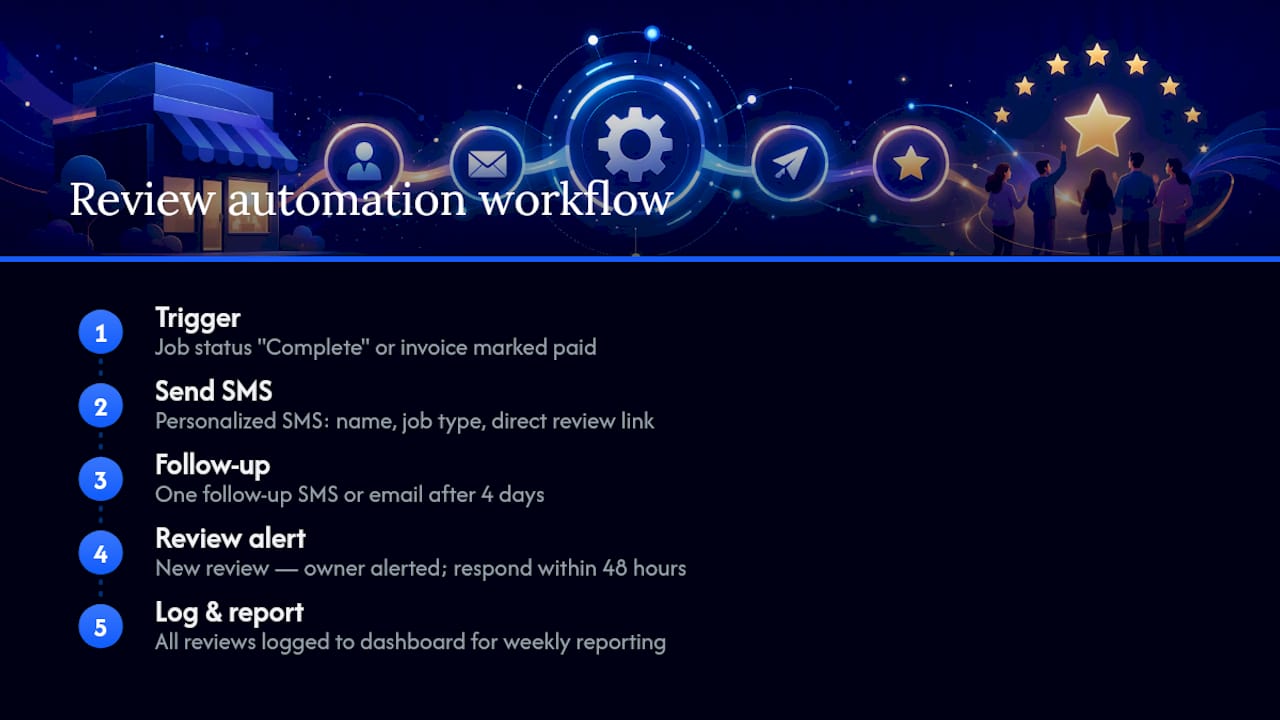
Strategic America’s guidance recommends embedding review asks directly into job-completion workflows rather than running separate campaigns. This keeps volume steady and organic rather than spiked.
For businesses with historical customer lists, send requests in small batches of 10–15 per day over several weeks rather than all at once. Sudden spikes in review volume can trigger Google’s filters even when every review is genuine.
Pro Tip: Track your link click-to-submit rate. If clicks are high but submitted reviews are low, the problem is friction after the click, often because the customer is not signed into a Google account. Add a one-line note to your message: “You’ll need a Google account to leave a review — Gmail works great.”
Shopify’s analysis reinforces that a steady, recent flow of reviews produces more sustained local visibility than sporadic campaigns. Automation is the most reliable way to maintain that cadence without adding manual work.
How to reply to positive and negative reviews
Responding to reviews is not optional. Google and Shopify both recommend replying to every review as a signal of active management, and your response is often read by future customers, not just the reviewer.
Positive review template: “Thank you, [First Name]! We’re glad the [service type] went smoothly. Our team works hard to make sure every job is done right, and it means a lot to hear that. We look forward to helping you again.”
Negative review template: “Thank you for sharing this, [First Name]. We’re sorry the experience didn’t meet your expectations. We’d like to make it right — please call us at [phone number] or email [address] so we can resolve this directly. We take every piece of feedback seriously.”
Timing: Respond to positive reviews within 48 hours. For negative reviews, respond within 24 hours. A fast, professional reply to a negative review often matters more to prospective customers than the complaint itself.
Pro Tip: Add one specific detail to every positive reply, such as the service type or the technician’s name. “Glad the HVAC tune-up went well, and that Marcus was able to walk you through the filter schedule” reads as genuinely personal and builds more trust than a generic thank-you. Reviewers who feel individually recognized sometimes update a 4-star review to a 5-star.
For negative reviews, never argue publicly or share private customer details. Acknowledge, offer to resolve offline, and keep the tone professional. The complaint-to-5-star guide from Jobospro covers de-escalation scripts in more depth for field-service situations.
What to track and when you’ll likely see results
Reviews affect two things that matter to your business: local search ranking and conversion rate from your Business Profile. Tracking both tells you whether your system is working.
Primary metrics to monitor weekly:
- Review velocity: new reviews per week (aim for a consistent number, not a spike)
- Average star rating: track trend over 30, 60, and 90 days
- Response rate: percentage of reviews you have replied to (target 100%)
- Profile impressions: views of your Business Profile in Maps and Search (visible in Business Profile Insights)
Secondary metrics to check monthly:
- Click-through rate from your Business Profile to your website
- Number of calls or direction requests from Maps
- Sentiment trends in review text (recurring complaints signal operational issues)
Realistic timeline: Most businesses see their first new reviews within days of starting a consistent ask process. Visible local-ranking movement in competitive markets typically takes 3–6 months of sustained review velocity. Less competitive local markets can show ranking shifts in 4–8 weeks. Set a 30-day goal of a specific number of new reviews per week rather than a star-rating target, since rating is a lagging indicator.
The revenue-impact framing from Jobospro is worth internalizing here: reviews are not a vanity metric. A stronger Business Profile with recent, high-volume reviews directly affects how many calls and form fills you receive from Maps.
How to handle fake or policy-violating reviews
Fake reviews happen. A competitor, a disgruntled ex-employee, or a mistaken identity can all produce reviews that violate Google’s policies. Here is how to handle them without making the situation worse.
- Document everything first. Screenshot the review with the date, reviewer name, and star rating. Check your records for any customer by that name or with a matching order date.
- Attempt offline resolution if the reviewer could be a real customer. Sometimes a 1-star review comes from a genuine customer with a legitimate complaint. A direct call or email to resolve the issue is always the first step.
- Flag the review in Google Business Profile. Go to your reviews, click the three-dot menu next to the review, and select “Report review.” Choose the most accurate policy violation category.
- Submit a support request if flagging alone does not result in removal. Use the Google Business Profile Help Center to open a case. Include your screenshots, the review date, and a clear explanation of why the review violates policy.
- Post a brief public reply while the investigation is in progress. Something like: “We’ve looked into this and have no record of this customer or job. We’ve reported this review to Google for investigation.” Keep it factual and calm.
Evidence Google support typically wants:
- Screenshot of the review with timestamp
- Proof the reviewer was never a customer (CRM records, job logs, invoice history)
- Any other reviews from the same account that appear coordinated
- Documentation of a pattern if you suspect a competitor campaign
When to escalate beyond Google: if you believe a review is part of a coordinated attack or defamation campaign, consult a business attorney before taking further action. Google’s removal process is the right first step; legal routes are a last resort.
What actually works for home service businesses
Most small home-service operators I see struggle with reviews for the same reason: they rely on memory. A technician finishes a job, the customer seems happy, and the ask never happens because the next call is already coming in.

The fix is not motivation. It is removing the decision entirely. When the review request sends automatically the moment a job closes in your system, your team does not have to remember, and your review count grows whether it is a slow Tuesday or your busiest week of the year.
The one tactic that consistently outperforms everything else for field-service operators: combine the in-person verbal ask at job completion with an SMS that goes out within two hours. The verbal ask primes the customer. The SMS delivers the frictionless link while the experience is still fresh. Neither step alone works as well as both together, and The Search Sherpa’s system confirms this human-priming-plus-automation combination as the most reliable pattern.
The other mistake I see repeatedly is treating negative reviews as a reputation problem rather than an operational signal. A cluster of complaints about scheduling delays or technician communication is telling you something your internal reporting is not. Fix the operation, and the reviews fix themselves.
Jobospro automates your review workflow so nothing falls through the cracks
Home service operators who want a consistent, compliant review system without adding manual work to their team’s plate get the most out of Jobospro’s built-in reputation automation. When a job closes or an invoice is paid, Jobospro triggers a personalized review request automatically, no manual send required.
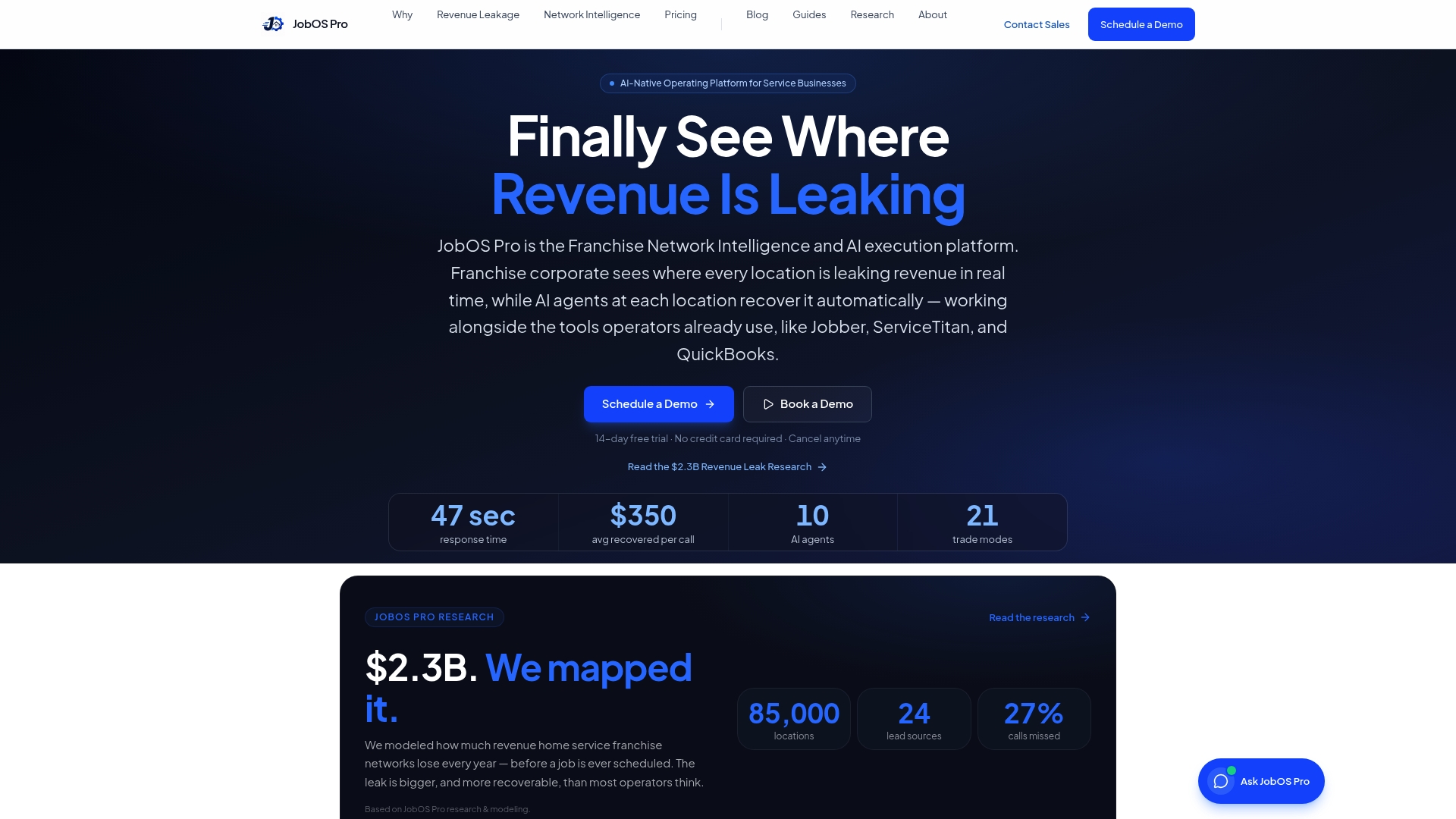
The platform centralizes review monitoring across every channel, sends reply reminders so no review goes unanswered, and gives franchise operators a multi-location dashboard to spot rating trends and standardize responses across locations. It connects with tools you already use, including Jobber and QuickBooks, so the trigger fires from your existing job data rather than a separate system.
- Triggered SMS and email requests tied to job completion or invoice status
- One automated follow-up if the review link is not clicked within 4 days
- Centralized inbox for monitoring and responding to new reviews
- Multi-location benchmarking for franchise networks
- Compliance-first design: no incentives, no gating, steady velocity
Explore Jobospro’s AI automation to see how the review workflow fits into a broader operational system, or check out the free Google Reviews guide for templates and a 90-day plan built specifically for home service businesses. Start your free trial at Jobospro.
Sources
Before you build or adjust your review system, read the primary sources directly. Google’s policies update periodically, and practitioner guides can lag behind.
- Tips to get more reviews - Google Business Profile Help
- Google Reviews: How to Get More for Your Business (2026) - Shopify
- How to Get More Google Reviews: A Realistic System for Local Businesses - The Search Sherpa
- How to Get More Google Reviews: 2026 Guide | Plaudit
- How to Get More Google Reviews in 2026 | Strategic America
When Google’s own documentation and a third-party guide conflict, follow Google’s documentation. For account-specific issues (a review that will not post, a profile that is suspended, or a flagged review that was not removed), contact Google Business Profile support directly rather than relying on a practitioner guide written for a different situation.