
QuickBooks for Contractors: Setup, Editions, and Job Costing
QuickBooks for Contractors: Setup, Editions, and Job Costing
Start with QuickBooks Online Plus, Projects enabled, and QuickBooks Time added on. That combination handles job costing, estimates, and 1099 contractor payments for most residential and light-commercial shops. Move up to QuickBooks Online Advanced or the Construction Edition (available through Intuit Enterprise Suite) only when retainage, certified payroll, or bonded work-in-progress reporting become weekly requirements rather than annual headaches.
This setup fits solo subcontractors, framing and trade crews, and mid-size general contractors running 10 to 50 active jobs a year. Growing commercial shops chasing government contracts or AIA billing will outgrow it fast, and that’s fine. QuickBooks scales with you if you know the triggers.
Three actions get you running this week:
- Pick QuickBooks Online Plus (not Essentials) and confirm Projects is turned on under company settings.
- Set up two-sided items in your chart of accounts so every cost tags to income for the same job.
- Add QuickBooks Time before your first payroll run so field hours land in job costs automatically.
The single trigger that forces an upgrade conversation: the moment you sign a contract requiring certified payroll reports or retainage tracking beyond basic manual methods.
Key Takeaways
QuickBooks Online Plus with Projects enabled covers most contractors, while retainage, certified payroll, or bonded WIP work should trigger an upgrade to Advanced, the Construction Edition, or Desktop Enterprise.
| Point | Details |
|---|---|
| Start with Plus | QuickBooks Online Plus with Projects enabled handles job costing for most solo and mid-size contractors. |
| Watch for upgrade triggers | Certified payroll, retainage clauses, or bonding requirements mean it’s time for Advanced or Desktop Enterprise. |
| Two-sided items are non-negotiable | Without them, every cost and income line breaks apart and job profitability reports become meaningless. |
| Run monthly job autopsies | Flag jobs missing estimate margins by 10% and fix one root cause per job during month-end close. |
| Pair QuickBooks with an ops layer | JobOS Pro connects dispatch, missed calls, and collections to your QuickBooks data to catch revenue leaks QuickBooks alone won’t surface. |
Table of Contents
- What Is the Best QuickBooks Setup for Contractors?
- How Do You Choose the Right QuickBooks Setup?
- How Does QuickBooks Handle Job Costing and WIP for Contractors?
- How Do You Set Up Progress Invoicing and Retainage in QuickBooks?
- Which Integrations and Add-Ons Do Contractors Actually Need?
- Where Can Contractors Get QuickBooks Training and Setup Help?
- Why Does the Monthly Job Autopsy Matter More Than Software Choice?
- How Does JobOS Pro Work Alongside QuickBooks for Contractors?
- Frequently Asked Questions
- Sources
What Is the Best QuickBooks Setup for Contractors?
The right edition depends less on company size and more on how complicated your jobs get. A solo electrician billing flat rates has different needs than a general contractor juggling AIA progress billing across six open projects.
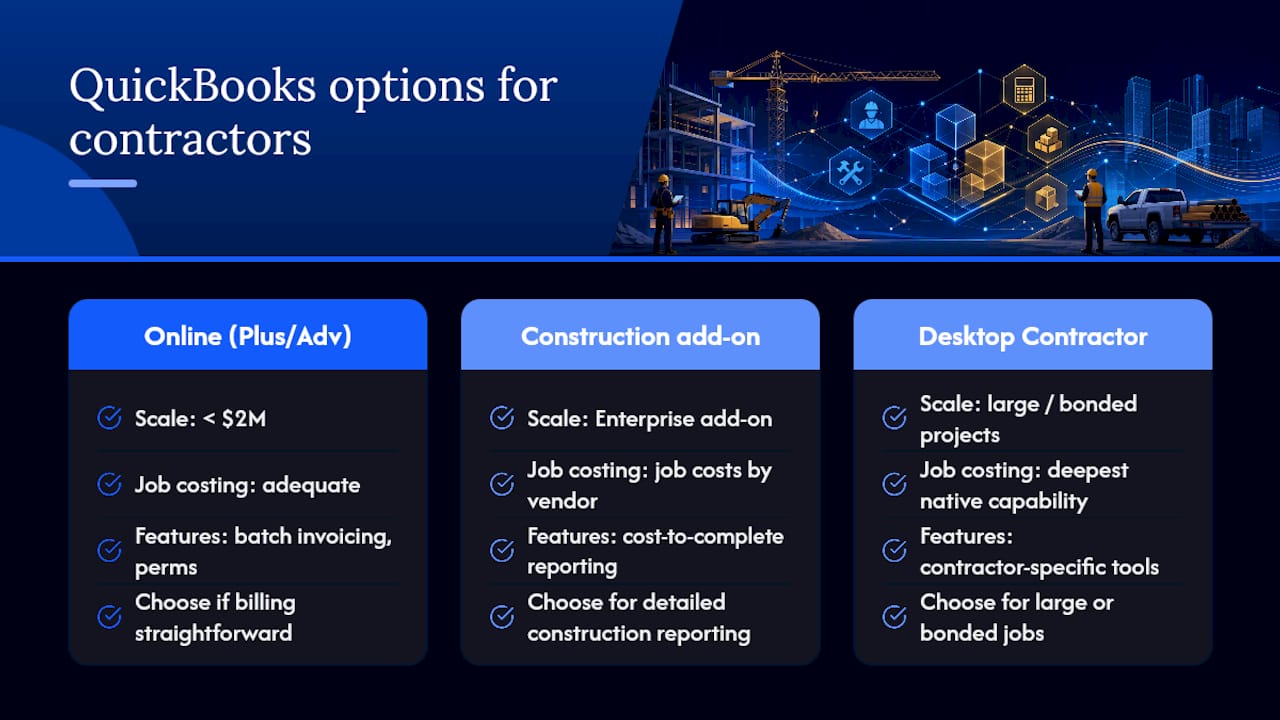
QuickBooks Online (Simple Start, Essentials, Plus, Advanced) is the cloud-native option most contractors start with. Simple Start and Essentials skip Projects entirely, which makes job costing nearly impossible, so Plus is the practical floor for anyone tracking job-level profit. Advanced adds batch invoicing, custom user permissions, and deeper reporting.
QuickBooks Online Construction Edition is Intuit’s newer cloud-native add-on, sold through Intuit Enterprise Suite or bundled with Advanced. It brings cost-to-complete reporting and job costs by vendor into the cloud environment, features previously locked inside Desktop Enterprise.
QuickBooks Desktop Enterprise Contractor Edition remains the deepest job-costing tool Intuit sells, with industry-specific reports and higher data-file capacity. It’s desktop-based, so remote access requires hosting, which adds monthly cost and IT overhead.
| Dimension | QBO Plus/Advanced | Construction Edition (add-on) | Desktop Enterprise Contractor |
|---|---|---|---|
| Best for | Solo to mid-size contractors | Growing shops needing cloud + deep job costing | Large contractors, complex WIP, bonded work |
| Deployment | Cloud, any device | Cloud, via Enterprise Suite or QBO Advanced | Desktop, hosting needed for remote access |
| Job costing depth | Basic to solid with Projects | Cost-to-complete, job cost by vendor | Deepest native job costing |
| Progress billing/retainage | Manual workarounds in Plus | Improved retainage handling | Full retainage and AIA-style billing |
| Payroll/1099 support | Add-on QuickBooks Payroll | Add-on QuickBooks Payroll | Integrated payroll module |
Realistic all-in monthly cost, including QuickBooks Time and payroll, runs roughly $150 to $250 for a Plus setup, climbing toward $400 to $600 once you add Advanced or the Construction Edition with several field users. Buy Plus now if you’re under 20 jobs a year with simple billing. Plan an upgrade the moment a client requires certified payroll or your bonding company asks for WIP schedules.
How Do You Choose the Right QuickBooks Setup?
Gather these facts before picking a plan:
- Annual revenue and number of active jobs per year.
- Whether any contracts require AIA billing, bonding, or prevailing-wage/certified payroll reporting.
- Number of office staff who need simultaneous access.
- How many field employees need mobile time tracking tied to specific jobs.
- Whether retainage is a standard clause in your contracts.
When you talk to a QuickBooks ProAdvisor or evaluate a plan yourself, ask directly: Does this tier produce a usable WIP schedule? Can it calculate retainage automatically on progress invoices? Will it generate certified payroll reports without a manual spreadsheet? Can staff log in remotely without a hosting fee?
Red flags that mean skip QBO Plus entirely:
- You’re bidding public projects requiring certified payroll documentation.
- Your bonding company wants formal cost-to-complete schedules every quarter.
- You run more than 50 simultaneous jobs with subcontractor cost tracking on each.
Rule of thumb: under $2 million in annual revenue with straightforward billing, Plus works. Above that, with any bonding or prevailing-wage exposure, start planning for Advanced, the Construction Edition, or Desktop Enterprise.
How Does QuickBooks Handle Job Costing and WIP for Contractors?
Job costing in QuickBooks runs on four building blocks: Projects (which groups all income and costs by job), two-sided items (so a cost and its matching income category live on the same line), class tracking (for cutting reports by division or crew), and burdened hourly cost rates that fold labor burden (payroll taxes, insurance, benefits) into the true cost of an hour worked.

Work-in-progress reporting, meaning how much revenue you’ve earned versus billed on jobs still in progress, requires more than baseline Plus in most cases. Cost-to-complete reporting became available in the cloud only with the Construction Edition add-on, so contractors relying on lenders or bonding companies for WIP schedules often need that tier or Desktop Enterprise.
The setup mistakes that quietly break job costing:
- Skipping two-sided items and coding costs to a single expense account with no matching income side.
- Never enabling burdened labor rates, which makes every labor-heavy job look more profitable than it is.
- Letting field crews log time without tagging it to a job or project.
Pro Tip: Set your burdened hourly rate once per crew type (framer, electrician, laborer) rather than per employee. It’s close enough for accurate job costing and far less maintenance than updating rates every time someone gets a raise.
Contractor guides consistently point to Plus as the practical minimum for job-level profitability tracking, since Simple Start and Essentials simply don’t expose the Projects feature.
How Do You Set Up Progress Invoicing and Retainage in QuickBooks?
Progress billing and retainage trip up more contractors than any other QuickBooks workflow. Here’s the sequence that works:
- Build a detailed estimate in QuickBooks with line items matching your contract schedule of values.
- Convert the estimate to a progress invoice, billing a percentage or specific line items rather than the full amount.
- Record any deposit as a credit against the job, not general income, so it reduces the balance due correctly.
- Apply retainage as a percentage held back on each progress invoice, tracked as a separate line so billed-to-date and retained balances stay visible.
- Reconcile by matching subcontractor bills to the correct job item and clearing retainage only when the client releases it, typically at project closeout.
Pro Tip: Run a “billed versus costs incurred” report before sending any progress invoice. If costs are running ahead of billing, you’re financing the client’s project out of your own cash flow.
Quick notes on reconciliation:
- Map every customer payment to the correct job, never to a lump “accounts receivable” catch-all.
- Progress invoicing on a two-week or monthly cadence, tied to actual work completed, keeps cash flow closer to real job costs and reduces the odds you’re carrying unpaid labor for 60 days.
Which Integrations and Add-Ons Do Contractors Actually Need?
QuickBooks Time solves field time tracking, pushing hours directly into job costs by project and cost code, which is what makes burdened labor rates useful in the first place. QuickBooks Payroll handles tax filings, direct deposit, and integrates payroll burden into job costs when set up correctly. QuickBooks Payments handles card and ACH processing so invoices get paid without a separate merchant account.
Field-service apps matter here too. A scheduling or dispatch tool that only pushes summary totals into QuickBooks loses the job-level detail that makes cost reports meaningful, so bi-directional integrations, ones that sync job tags, labor hours, and material costs both ways, matter more than flashy dashboards.
Before buying any integration, confirm:
- Does it map to specific Projects/jobs in QuickBooks, not just a general ledger account?
- Does payroll burden (taxes, insurance) flow into job costs, or does it sit outside job reports?
- Does it support 1099 contractor payments correctly for subs who aren’t W-2 employees?
Expect $80 to $150 a month combined for QuickBooks Time and Payments on a small crew, with payroll pricing scaling by employee count.
Where Can Contractors Get QuickBooks Training and Setup Help?
Intuit runs official product training through Intuit Camps, covering QuickBooks Online setup for specific industries including construction. For hands-on migration or a broken chart of accounts, a QuickBooks ProAdvisor with construction experience is worth the cost, typically a few hundred dollars for a setup review or a half-day cleanup session. Official troubleshooting and demos live on Intuit’s QuickBooks Online portal. For deeper job-costing mechanics beyond QuickBooks’s own documentation, the job costing guide from Steady Tax & Bookkeeping walks through the two-sided item setup in more detail.
Why Does the Monthly Job Autopsy Matter More Than Software Choice?
Practitioners who get real value out of QuickBooks share one habit: a monthly job autopsy.
Make it part of month-end close:
- Pull the job profitability report for the prior month.
- Flag jobs 10% or more off estimate.
- Write one sentence naming the cause and one fix per job.
- Apply that fix to your next estimate template, not just that client’s invoice.
Pro Tip: Do this the same day every month, right after payroll posts. Waiting until quarter-end means you’ve already repeated the same estimating mistake on three more bids.
An operations platform closes the gap between what happens in the field and what QuickBooks shows. Missed calls, delayed dispatch, and slow collections rarely show up as a line item, they show up as a lower margin nobody can explain. Reviewing the drivers behind that margin gap is where the job autopsy earns its keep.
A Practitioner’s Note on QuickBooks Discipline
Setting up two-sided items and burdened labor rates felt like overkill until the first month those job profitability reports actually matched reality. The bigger shift wasn’t software, it was treating QuickBooks as the single system of truth: field hours, material costs, and change orders all flow into one place, or the numbers lie. Chase every job through two systems and you’ll never trust either one.
How Does JobOS Pro Work Alongside QuickBooks for Contractors?
QuickBooks handles your books. It doesn’t catch the missed call that would have been a $4,000 job, the invoice that sat unpaid for six weeks, or the crew that showed up two hours late and cost you the client’s trust. JobOS Pro sits on top of your existing QuickBooks setup and closes that gap.
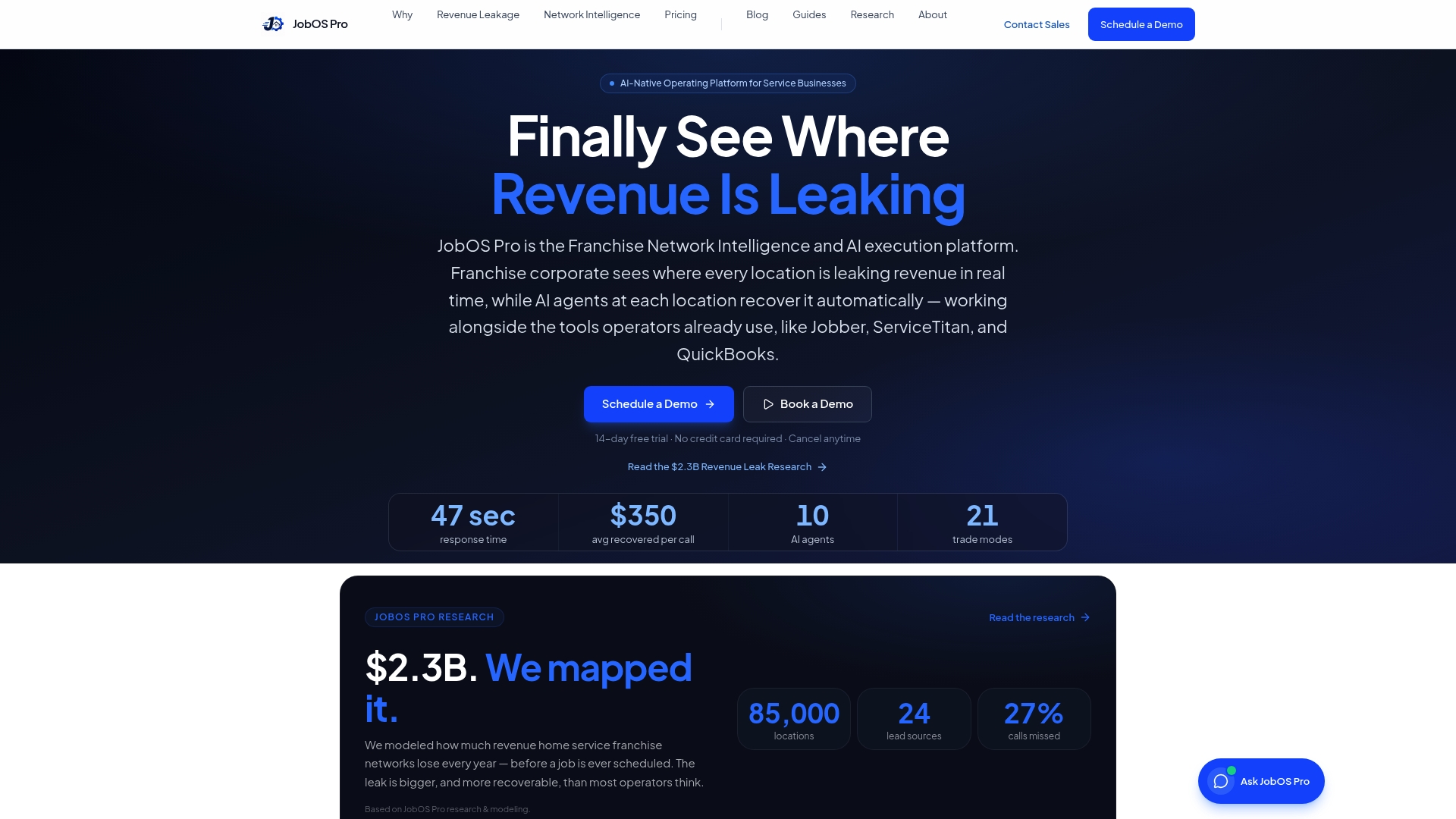
JobOS Pro connects dispatch, missed-call capture, and payment collection directly to your accounting data, so revenue leaks show up as flagged issues instead of a mystery margin drop three months later. That means:
- Faster collections through automated invoice follow-up tied to job status.
- Fewer untagged costs, since field activity syncs back to the job it actually belongs to.
- Multi-location benchmarks if you’re running more than one crew or franchise territory.
- Real-time visibility into missed calls and dispatch delays before they cost you a signed job.
If you’re already tracking job costs in QuickBooks Plus or Advanced, pairing it with an operations layer built to catch collections gaps is the practical next step. Start a free trial and see what it flags in your first billing cycle.
Frequently Asked Questions
Is QuickBooks Online good enough for contractors, or do I need Desktop? QuickBooks Online Plus or Advanced handles job costing for most contractors under $2 million in revenue with straightforward billing. Desktop Enterprise Contractor Edition still offers the deepest native job costing for large or bonded projects.
What’s the difference between QuickBooks Online Advanced and the Construction Edition? Advanced adds broader business features like batch invoicing and custom permissions. The Construction Edition, sold as an add-on through Intuit Enterprise Suite, adds construction-specific reporting like cost-to-complete and job costs by vendor.
Do I need QuickBooks Time if I already have a scheduling app? Only if your scheduling app doesn’t sync labor hours to specific jobs inside QuickBooks. Without that connection, your burdened labor costs won’t land on the right project.
How do I handle 1099 contractors in QuickBooks? Collect a W-9 through the Contractors workflow, enable 1099 tracking, and map subcontractor expense accounts to the correct 1099 box before you issue any payments.
When should I hire a QuickBooks ProAdvisor instead of setting it up myself? If your chart of accounts is already a mess, you’re migrating from another platform, or you need certified payroll reports fast, a ProAdvisor setup review typically pays for itself within one clean job costing cycle.
This article is general information, not a substitute for advice from a qualified financial advisor. Consult a qualified financial professional about your own circumstances before acting on anything here.
Sources
- QuickBooks for Construction Contractors: Compare 2026 Editions
- QuickBooks for Contractors: Job Costing Setup Guide for 2026 - Contractor Guide Pro